View Menu

The View menu.
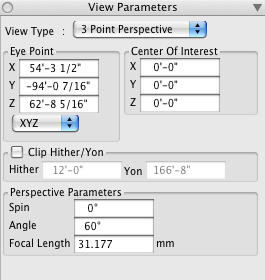
The View parameters palette.
This menu consists of several groups of commands. The first contains different types of 3D views. See illustrations.
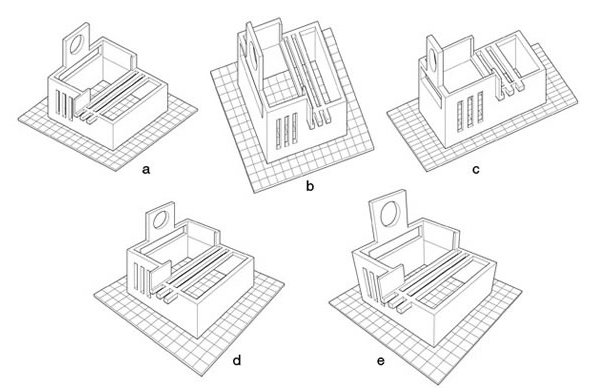
form•Z view types (a) axonometric, (b) isometric (c) oblique (d) 3 Point Perspective, and (a) 2 point perspective
The next group contains different views, namely a 3D view and six orthographic projections. All these are also available in the Navigation tool palette on the top of the screen.
View Parameters invokes the View Parameters palette. The same palette can also be invoked from the Palettes menu. It both reflects methods available in the menu and offers additional methods for specifying views.
View Type: This popup menu contains the 3D types also found in the menu.
Eye Point and Center Of Interest: The coordinate values entered in these fields specify the position of the two key points of a line of sight.
XYZ and Polar: These two items selectable from the popup menu specify the type of coordinates used.
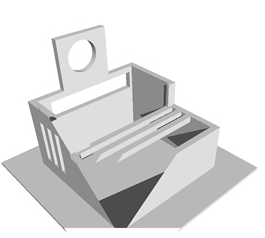
Clip Hither/Yon: The hither and yon are two planes perpendicular to the line of sight that can be used to clip a scene for viewing purposes, as shown in the example. In other words the clipping does not affect the models involved in the scene permanently but is only applied temporarily for viewing purposes. When this option is on, clipping is applied and the position of the clipping are specified by the values entered in the Hither and Yon numeric fields. See examples of clipping below.
A clipped view.
Perspective Parameters: This group of three numeric fields specifies values that define a perspective view numerically.
The next group in the Views menu contains a single command, namely, Edit Cone of Vision. The cone of vision is discussed in a separate section.
The last group contains four menu items, as follows:
Home and Set Home
The home view is a view that is frequently used or a good place to view the entire model. The home view by default is the initial view that a project is created with. When the Home menu item is selected, the view is reset to the home view. To change the home view, use any of the view tools to navigate to the desired home view and then select the Set Home item from the View menu. Note that, when opening projects created in bonzai3d prior to v. 2.0 or any form•Z project, the current view becomes the home view.
Previous and Next
The Previous item changes the view to the last view. That is, to the view prior to the most recent navigation or other command that changed the view. You can recall previous views all the way back to the point at which the project was opened or created. Once you have selected a previous view, you can return to the view prior to the selection of Previous by selecting Next. Previous and Next can be used to roll through the range of recently used views. Note that as soon as the view is changed, the Next item is dimmed.

Copyright © 2021 AutoDesSys, Inc. 3518 Riverside Dr. Suite 206, Columbus, OH, 43221 Phone 614-488-8838 support@formz.com
formZ pro