 NURBS Surface Merge
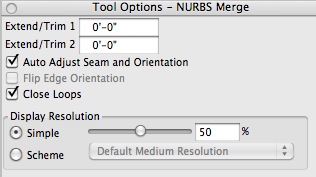
The NURBS Merge tool options palette.
This tool combines two NURBS surfaces into one, adding a connecting surface segment if necessary.
To merge surfaces, activate the NURBS Surface Merge tool. You may then click on two surfaces and let the tool decide which edges to merge, or you may hold down the control key to select the edges yourself. The surfaces will be merged into a single surface in the results buffer, with a new section of minimal variation connecting them if the edges did not originally meet. When two edges of the same surface are selected as input, the surface will be merged with itself and closed.
When the merged surface is created, control points will mark the original positions of the endpoints of each of the input surfaces along one edge. The portions of the merged surface corresponding to the original surfaces can be retracted or extended by moving the control points, to allow interactive adjustment of the shape of the connecting section.
Yellow, dotted curve guides indicate the extension path of the edges of the surfaces to be merged. When an endpoint control is selected, the corresponding curve guide turns red, illuminating the extension path along which the control can be moved. The paired control point on the other side of the edge that is being extended will be adjusted automatically.
Two options in the NURBS Merge tool options palette control how seams are handled:
Auto Adjust Seam And Orientation: When this option is on, the tool will attempt to automatically orient the input sources and adjust the seam positions of closed surfaces to achieve the best merge. This option is on by default. When off, the tool will merge surfaces without adjusting the seam positions or orientations.
Flip Edge Orientation: This option is available only when the previous option is off. With this option on, the orientation of the second input source will be reversed.